








Forage Quality Cam
QUALITY MEETS PRECISION
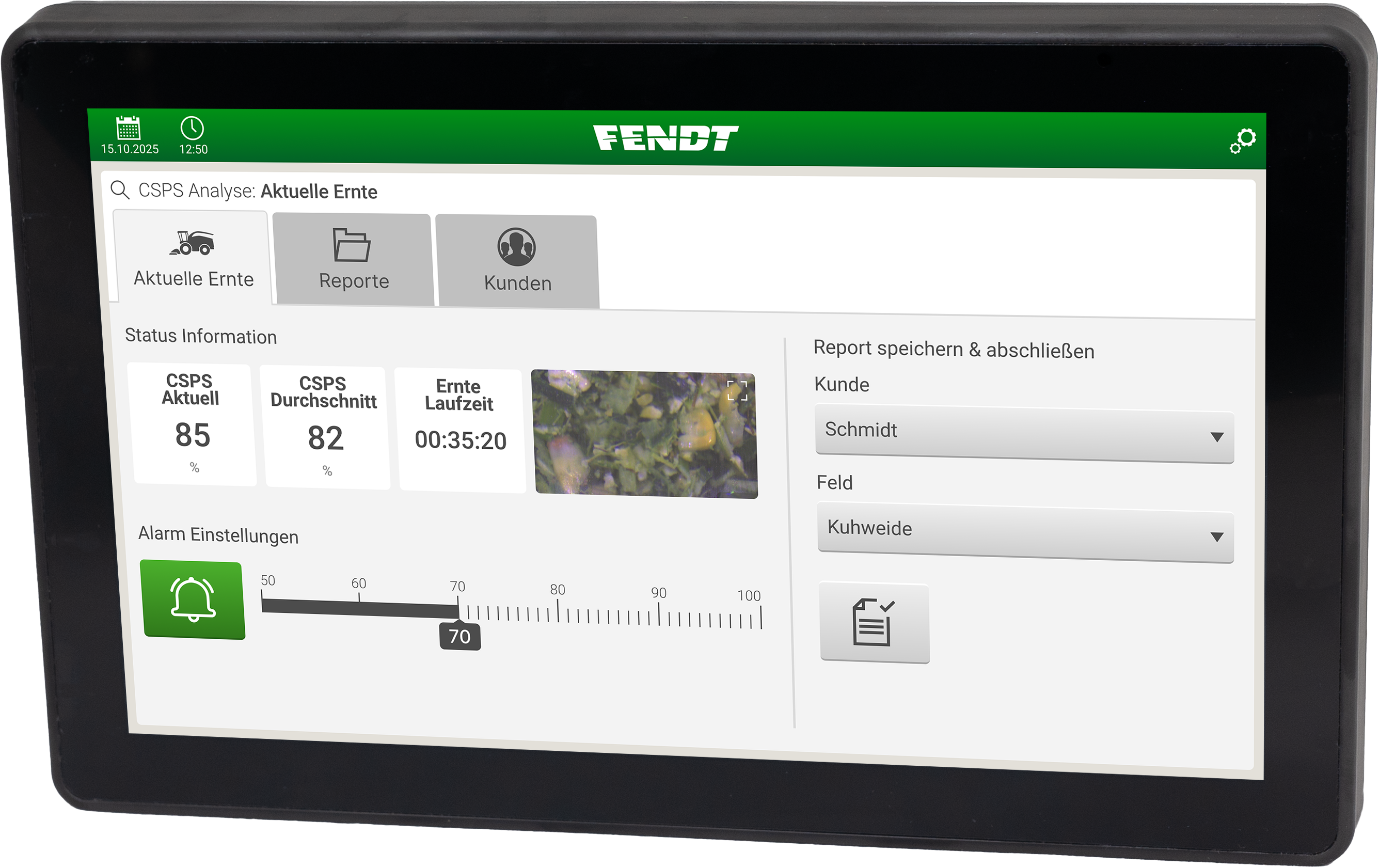
FQC brings real-time Corn Silage Processing Score (CSPS) monitoring to your Fendt Katana forage harvester. Using advanced camera-based technology, FQC continuously analyses kernel processing quality and delivers live feedback on the FQC Terminal - helping you optimise silage quality in every pass.
Only Available for Fendt Katana Forage Harvesters
OVERVIEW
PRODUCT DESCRIPTION
FQC uses a high-resolution camera and computer vision to measure Corn Silage Processing Score (CSPS) in real time during harvest. Mounted on the Fendt Katana forage harvester and displayed on the SMAG Terminal (11.6" touchscreen), FQC gives operators instant, continuous feedback on kernel processing quality with no more waiting for lab results. With both Local and VarioDoc reporting modes, harvest data can be stored on the terminal or logged directly through the machine's ISOBUS Task Controller.
KEY FEATURES
- Real-Time CSPS Monitoring: FQC uses camera-based computer vision to measure CSPS continuously during harvest, giving you instant quality feedback on the SMAG Terminal.
- CSPS Alarm System: Set a CSPS threshold and receive both visual and audible alerts the moment processing quality drops, so you can take action immediately.
- Local Reporting: Store harvest reports on the SMAG Terminal. Assign customers and fields, review CSPS distribution charts, add comments, and filter reports by customer, field, or date.
- VarioDoc Integration: Switch to VarioDoc mode to log CSPS values through the machine's ISOBUS Task Controller. FQC registers as "FQC Sensor" on the implement list for seamless data recording.
- NIR Sensor Display (Optional): On Fendt Katana machines equipped with an ITPhotonics NIR sensor, FQC can display additional quality values (Dry Matter, Starch, Crude Protein, Ash, peNDF, NDF) alongside the CSPS reading.
- Day and Night Mode: Switch between Day (Hell) and Night (Dunkel) display modes with adjustable brightness, manual or automatic via the built-in light sensor.
MANUAL
OPERATOR'S MANUAL
You have FQC, but now you're probably wondering: How does this work? The FQC Operating Manual provides detailed instructions to ensure safe and effective usage, from powering on to how to utilize settings to get the best user experience.
OVERVIEW
PRODUCT DESCRIPTION
FQC uses a high-resolution camera and computer vision to measure Corn Silage Processing Score (CSPS) in real time during harvest. Mounted on the Fendt Katana forage harvester and displayed on the SMAG Terminal (11.6" touchscreen), FQC gives operators instant, continuous feedback on kernel processing quality with no more waiting for lab results. With both Local and VarioDoc reporting modes, harvest data can be stored on the terminal or logged directly through the machine's ISOBUS Task Controller.
KEY FEATURES
- Real-Time CSPS Monitoring: FQC uses camera-based computer vision to measure CSPS continuously during harvest, giving you instant quality feedback on the SMAG Terminal.
- CSPS Alarm System: Set a CSPS threshold and receive both visual and audible alerts the moment processing quality drops, so you can take action immediately.
- Local Reporting: Store harvest reports on the SMAG Terminal. Assign customers and fields, review CSPS distribution charts, add comments, and filter reports by customer, field, or date.
- VarioDoc Integration: Switch to VarioDoc mode to log CSPS values through the machine's ISOBUS Task Controller. FQC registers as "FQC Sensor" on the implement list for seamless data recording.
- NIR Sensor Display (Optional): On Fendt Katana machines equipped with an ITPhotonics NIR sensor, FQC can display additional quality values (Dry Matter, Starch, Crude Protein, Ash, peNDF, NDF) alongside the CSPS reading.
- Day and Night Mode: Switch between Day (Hell) and Night (Dunkel) display modes with adjustable brightness, manual or automatic via the built-in light sensor.
- Built-In Diagnostics: Monitor camera connection, camera health, ISOBUS status, and error codes directly from the Diagnostics screen. Tap any entry for detailed troubleshooting guidance.
SOFTWARE UPDATES
What is firmware version and where can I see what firmware version do I have on my ?
In this case, firmware version refers to the specific version of VIEW's software programmed into the SMAG Terminal. This needs to be updated periodically to improve performance, fix bugs, or add new features.
Would you like to update your VIEW system with the latest software version?
Download the guide below for instructions. The current firmware version is 1.1, and future updates will be available for download here.
What is firmware version and where can I see what firmware version do I have on my VIEW?
In this case, firmware version refers to the specific version of VIEW's software programmed into the SMAG Terminal. This needs to be updated periodically to improve performance, fix bugs, or add new features.
INSTALLATION: SOFTWARE
Step 1 - Download the software
On your laptop or PC:
Download the software above. The software file (fqc-x.x.swu, where x.x is the version number, e.g. 1.0, 1.1) will automatically download to your Downloads folder.
Step 2 - Transfer software to USB stick
1. Connect your USB stick and open its folder.
2. On a separate window, open your Downloads folder.
3. Make sure both windows are visible side by side.
4. Drag fqc-x.x.swu from Downloads to the USB window.
5. A progress bar will show the transfer progress.
6. Once done, close all windows and eject the USB stick safely.
Step 3 - Start up FQC
On your Fendt Katana, start up FQC on your SMAG Terminal as you normally do. Once the application is running, connect the USB stick that contains the fqc-x.x.swu file.
Step 4 - Selecting FQC
After a few seconds, the SMAG Terminal will display a screen where you will be asked to select an application to install. Press on the "FQC Camera System" button to start FQC's update installation.
Note: If by accident you press on "Other application," do not panic. You can always go back to this screen.
Step 5 - Installing FQC
Once you click "FQC Camera System," the installation will begin. A progress bar at the bottom of the screen will show the installation progress.
Warning: Do not turn off the SMAG Terminal until the installation is complete.
Step 6 - Waiting until completion
Once the progress bar at the bottom of the screen reaches 100%, the SMAG Terminal screen will turn black. Even though it looks like the terminal is off, it is not. Wait patiently until the FQC application starts.
Warning: Do not turn off the SMAG Terminal until the installation is complete.
Step 7 - Installation completed
If the FQC application starts normally, congratulations. You have successfully updated FQC on your SMAG Terminal.
Note: Remember to unplug the USB stick.
TROUBLESHOOTING
The SMAG Terminal doesn't power up
1. Check if theFQC Terminal Power and ISOBUS Cable is securely connected to the tractor in-cab sockets and FQC Terminal.
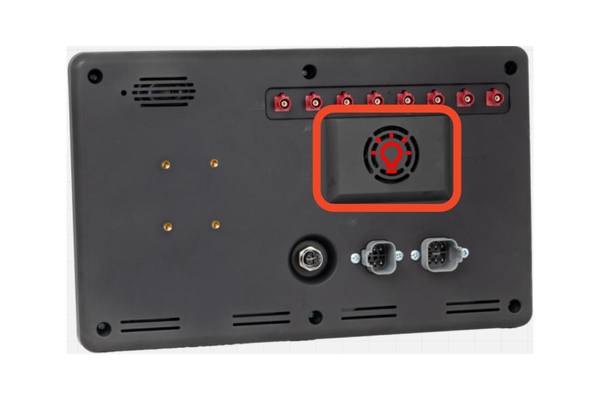
2. Check if behind the FQC Terminal there is a red light in the area highlighted on the image below. If there is a red light the FQC Terminal is receiving power. Wait 30 seconds for FQC to start.
3. If the problem persists, contact your dealer for additional technical support.